VBA – Import CSV file
This blogpost’s reason d’etre is to show an alternative to the function “Import text” when importing af CSV file into an Excel file. And why not use Import text? Besides having to clean up after the import, the function is quite inefficient and is overkill to use on simple semicolon-separated files. Another reason is that the import function doesn’t handle foreign letters too well.
But just if anybody’s is wondering: Deleting the data connection and disabling the query definition after data import is done like this:
    'delete data connection
    ActiveWorkbook.Connections(Filnavn).Delete
    Dim qt As QueryTable
   'delete query connection
   For Each qt In ActiveSheet.QueryTables
            qt.Delete
    Next qt
The alternative is to read the CSV file as a text file, and split each line into an array, and looping through the array to print it in Excel. Credit to Lernkurve from providing the snippet here.
'This sub only provides the sub ImportCSVfile with parameters
Sub InitiateImportCSVFile()
Dim filePath As String
Dim ImportToRow As Integer
Dim StartColumn As Integer


    filePath = "C:\Documents and Settings\MYCSVfile.csv"
    ImportToRow = 1 'the row where it will start printing
    StartColumn = 1 'the start column

    ImportCSVFile filePath, ImportToRow, StartColumn
End Sub

'This is the sub that does all the work:

Sub ImportCSVFile(ByVal filePath As String, ByVal ImportToRow As Integer, ByVal StartColumn As Integer)

    Dim line As String
    Dim arrayOfElements
    Dim element As Variant


    Open filePath For Input As #1 ' Open file for input
        Do While Not EOF(1) ' Loop until end of file
            ImportToRow = ImportToRow + 1
            Line Input #1, line
            arrayOfElements = Split(line, ";") 'Split the line into the array.

            'Loop thorugh every element in the array and print to Excelfile
            For Each element In arrayOfElements
                Cells(ImportToRow, StartColumn).Value = element
                StartColumn = StartColumn + 1
            Next
        Loop
    Close #1 ' Close file.
End Sub
And that’s it!
VBA – Get name of file without extension
The easiest way to get the name of a file is of course to use ThisWorkbook.Name. It will supply you with the name and the extension of the file (for example “MyWorkbook.xlsx”).But if you want to retrieve only the name the workbook and not the extension, you’ll need this:
Dim NameOfWorkbook

NameOfWorkbook = Left(ThisWorkbook.Name, (InStrRev(ThisWorkbook.Name, ".", -1, vbTextCompare) - 1))
It uses the function InStrRev to find the last occurance of “.” and the Left() function is then used to assign all chars left of this position to the NameOfWorkbook variable.
UserForm Listbox – Populate list and extract selected items
So I needed to create a small script that allowed the users to select a number of columns (letters from A to Z) from a list. The purpose was for users to be able to chose which columns in a sheet to print – but that’s not part of this post. We focus on the population of the listbox and the extraction of the selected items of the listbox.
Step 1: Create a UserForm that contains a Listbox called Listbox1 and a button called CommandButton1.
Step 2: Create the UserForms’ “Initialize” procedure.
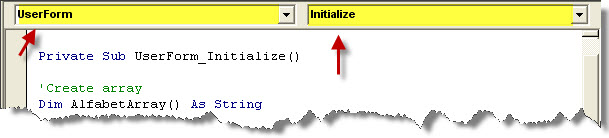
Step 3: Populate the ListBox with the letters A to Z:
Private Sub UserForm_Initialize()

'Create array
Dim AlfabetArray() As String

'Define content of array (here we have splitted with "|", but you could also use "," or something else.
AlfabetArray = Split("A|B|C|D|E|F|G|H|I|J|K|L|M|N|O|P|Q|R|S|T|U|V|X|Y|Z", "|")

'Populate the Listbox with the array of letters
ListBox1.List = AlfabetArray

End Sub
Step 4: Make sure that the ListBox has its attribute MultiSelect set to ‘1 – fmMultiSelectMulti’ if you want the users to be able to select multiple items with a click on the mouse, or ‘2 – fmMultiSelectExtended’, if the users has to “Ctrl-click” to select multiple items and be able to “scroll-select” multiple items much quicker.

Step 5: Extract the selected items from the ListBox and insert them into an array for later use.
Private Sub CommandButton1_Click()
Dim lItem As Long
Dim KolonneNavne() As String    'Array
Dim blDimensioned As Boolean    'Is the array dimensioned?
Dim lngPosition As Long         'Counting

blDimensioned = False
'Loop through all items in the Listbox
For lItem = 0 To Me.ListBox1.ListCount - 1

        If Me.ListBox1.Selected(lItem) Then
        'If the item has been selected we add it to the array

            'We check if the array has been dimensioned
            If blDimensioned = True Then
            ReDim Preserve KolonneNavne(0 To UBound(KolonneNavne) + 1) As String
            Else
            ReDim KolonneNavne(0 To 0) As String
            blDimensioned = True 'flag
            End If

            'We add the letter to the array
            KolonneNavne(UBound(KolonneNavne)) = Me.ListBox1.List(lItem)
        End If
Next lItem


'Loop through array to see which items were selected from the Listbox:

For lngPosition = LBound(KolonneNavne) To UBound(KolonneNavne)
MsgBox KolonneNavne(lngPosition)
Next lngPosition

End Sub
VBA – Retrieve Last Row From More Than One Column
Normally, it’s enough to know the last row in a specific column. In those cases I normally just use this widely method:
'Getting last row from column A
LastRow = Range("A" & Rows.Count).End(xlUp).row
But when you have several columns (for example 1 to 10) and you need to retrieve the last cell in use in any of these columns, we need something else. A big thanks to Jan Brun Rasmussen for having provided the following brilliant solution:
Sub DefineRange()

Dim StartColumn As Integer
Dim EndColumn As Integer
Dim LastRow

'define first and last column of the range
StartColumn = 2
EndColumn = 10

LastRow = FindLastRow(StartColumn, EndColumn) 'call the function FindLastRow and return the value to the variable LastRow
MsgBox "Last row is " & LastRow 'show and tell
End Sub

'---the above sub calls the function below, providing the function with the range parameters.

Function FindLastRow(iColI As Integer, iColN As Integer) As Long
    Dim iRowN As Long
    Dim iRowI As Long
    'Loop thorugh the columns
    For i = iColI To iColN
        'Define each columns' last row
        iRowI = Cells(Rows.Count, i).End(xlUp).Row
        'if last row is larger than in the previous column, save row number to iRowI
        If iRowI > iRowN Then iRowN = iRowI
    Next i
    FindLastRow = iRowN
End Function
VBA – Check Extension of File
When looping through all files in a folder, it’s often necessary to check the extension of each file, so you only mess with Excel files, for example.
The code below shows how to retrieve the extension of a file, define an array with “allowed” extensions, and match the extension of the file to the array.
Sub KørImport()

Dim MinExtensionX
Dim Arr() As Variant
Dim lngLoc As Variant

'Retrieve extension of file
MinExtensionX = Mid(MyFile.Name, InStrRev(MyFile.Name, ".") + 1)

Arr = Array("xls", "xlsx") 'define which extensions you want to allow
On Error Resume Next
lngLoc = Application.WorksheetFunction.Match(MinExtensionX, Arr(), 0)
If Not IsEmpty(lngLoc) Then '

'DO STUFF if it's an xls/xlsx file. Otherwise, chose next file in folder

End If
VBA – Delete PivotTables
This code snippet shows how to loop through all pivot tables in all worksheets and delete them:
Sub DeletePivotTables()

    Dim Pt As PivotTable
    Dim Ws As Worksheet

'Loop through worksheets
    For Each Ws In ActiveWorkbook.Worksheets
    Worksheets(Ws.Name).Select

'Loop through pivot tables
    For Each Pt In Ws.PivotTables

'Delete pivot table
           Pt.PivotSelect "", xlDataAndLabel, True
    Selection.Delete Shift:=xlToLeft

            'Exit Sub 'Optional: Get out
        Next Pt
    Next Ws
End Sub
VBA – Add New WorkSheet After The Last Worksheet
This post quickly shows how to add a new sheet, name it and place at the end of a line of sheets:
Worksheets.Add(After:=Worksheets(Worksheets.Count)).Name = "MynewSheet"
VBA – Toggle Between Open Excel Files
There is often need of working in two worksheets at a time – for example when you want to loop throigh the files in a folder, and copy data from each of them into a new file, thus gathering different data into one worksheet.
Here are some small code snippets that are needed to work with multiple worksheets at a time.
'Get the name of the currently active file. You'll need this when
'toggelinig between two files, and you want to open the old file
'where the data is assembled

Dim OrginialFile
OriginalFile = Application.ActiveWorkbook.Name


'Open new file
Dim MyFile
MyFile = "C:Maria\Myfolder\Myfile.xls"

 Workbooks.Open FileName:=MyFile


'Close a file
Dim MyNewFile
MyNewFile = "MyWonderfulFile.xls"
'Unable ScreenUpdating and DisoplayAlerts, so teh user isn't asked if he want tosave the changes
  Application.ScreenUpdating = False
  Application.DisplayAlerts = False
             Windows(MyNewFile).Close
  Application.ScreenUpdating = true
   Application.DisplayAlerts = true

'Toggle between open files.
Dim AnotherOpenFile
AnotherOpenFile = "MyWounderfullFile.xls"

Windows(AnotherOpenFile ).Activate
VBA – Looping through all files in a folder
This posts looks a lot like my previous – but it’s a bit simpler. Here I just show how to loop through files in a specific folder, which the user has chosen in a modal window.
Sub ListFiles()

Dim fd As FileDialog
Dim PathOfSelectedFolder As String
Dim SelectedFolder
Dim SelectedFolderTemp
Dim MyPath As FileDialog
Dim fs
Dim ExtraSlash
ExtraSlash = "\"
Dim MyFile

'Prepare to open a modal window, where a folder is selected
Set MyPath = Application.FileDialog(msoFileDialogFolderPicker)
With MyPath
'Open modal window
        .AllowMultiSelect = False
        If .Show Then
            'The user has selected a folder

            'Loop through the chosen folder
            For Each SelectedFolder In .SelectedItems

                'Name of the selected folder
                PathOfSelectedFolder = SelectedFolder & ExtraSlash

                Set fs = CreateObject("Scripting.FileSystemObject")
                Set SelectedFolderTemp = fs.GetFolder(PathOfSelectedFolder)

                    'Loop through the files in the selected folder
                    For Each MyFile In SelectedFolderTemp.Files
                        'Name of file
                        MsgBox MyFile.Name
                        'DO STUFF TO THE FILE, for example:
                        'Open each file:
                        'Workbooks.Open FileName:=MyFile

                    Next


            Next
        End If
End With

End Sub
VBA – Create and add items to dynamic arrays
This posts shows two things: Its shows how to find a value in a sheet without looping, and instead using the functions .Find and .CountIf, and how to create and add items to a dynamic array.
The problem I faced was that I had some answers to questions in a worksheet, and some of those answers had to be added as answers to questions in another worksheet. But the users in the original worksheet had in some cases added new questions and answers (rows and columns) to the questions, so I couldn’t just copy and paste it without chekcing the content and making sure the answers were posted along side the correct questions.
So, the code below first defines the questions I want to find, then finds the questions in the worksheet and saves the answers to a dynamic array. The next step is of course to add the answers to the other workwheet, and to transfer the questions and answers added by the user, but it’s not part of the example.
Dim Questions As Variant
Dim x As Integer
Dim myrow As Integer
Dim myColumn As Integer
Dim myValue

Dim Answers() As String    'Array of answers
Dim lngPosition As Long    'Counting
blDimensioned = False

'Array of questions
Questions = Array("Navn", "Ansat i fleksjob - Dato?", "Ansat den", "Bevillingsdato", "Evt. ophørsdato", "Kommune", "Tilskudsberettiget lønindplacering i SLS ")

'Go through the array of questions
'We want to find each of them in the worksheet

For x = LBound(Questions) To UBound(Questions)


Dim rowFound, columnFound

'If the question is not found in the worksheet, then just skip to the next item in the array
If WorksheetFunction.CountIf(Cells, Questions(x)) = 0 Then
GoTo NotFound
End If


'Find the x item in the array
Cells.Find(What:=(Questions(x)), After:=ActiveCell, LookIn:=xlValues, LookAt:= _
        xlPart, SearchOrder:=xlByRows, SearchDirection:=xlNext, MatchCase:=False _
        , SearchFormat:=False).Activate

'Found: Get the row and the column number of the answe to the question (the next column after the question
myrow = ActiveCell.row
myColumn = ActiveCell.Column + 1
myValue = Cells(myrow, myColumn)

'We have the answer.
'Add the answer to the the Answer array.

If myValue = "" Then myValue = " "

        'The array is dimensioned in the first loop
        If blDimensioned = True Then

            'The array is extended, so we extend the array
            ReDim Preserve Answers(0 To UBound(Answers) + 1) As String

        Else

            'The array is not dimensined, so we dimension it and flag it as dimensioned.
            ReDim Answers(0 To 0) As String
            blDimensioned = True

        End If

        'Add the answer to the last element of the array
        Answers(UBound(Answers)) = myValue


NotFound:

Next x
| M | T | W | T | F | S | S |
|---|---|---|---|---|---|---|
| 1 | 2 | 3 | 4 | |||
| 5 | 6 | 7 | 8 | 9 | 10 | 11 |
| 12 | 13 | 14 | 15 | 16 | 17 | 18 |
| 19 | 20 | 21 | 22 | 23 | 24 | 25 |
| 26 | 27 | 28 | 29 | 30 | 31 | |
Recent Posts
- VBA – Import CSV file
- VBA – Get name of file without extension
- UserForm Listbox – Populate list and extract selected items
- VBA – Retrieve Last Row From More Than One Column
- VBA – Check Extension of File
- VBA – Delete PivotTables
- VBA – Add New WorkSheet After The Last Worksheet
- VBA – Toggle Between Open Excel Files
- VBA – Looping through all files in a folder
- VBA – Create and add items to dynamic arrays
- VBA – Loop through arrays
- Excel formula – Miscellaneous
- VBA – Delete all files in a folder
- VBA – Loop through sheets
- VBA – Define PageSetup (PaperSize, Orientation, etc.) and Print Excel Sheet